Exploring SPL in Splunk
1.1 INTRODUCTION
Splunk is a powerful SIEM solution that provides the ability to search and explore machine data. Search Processing Language (SPL) is used to make the search more effective. It comprises various functions and commands used together to form complex yet effective search queries to get optimized results.
1.2 CONNECTING TO THE LAB
Question:
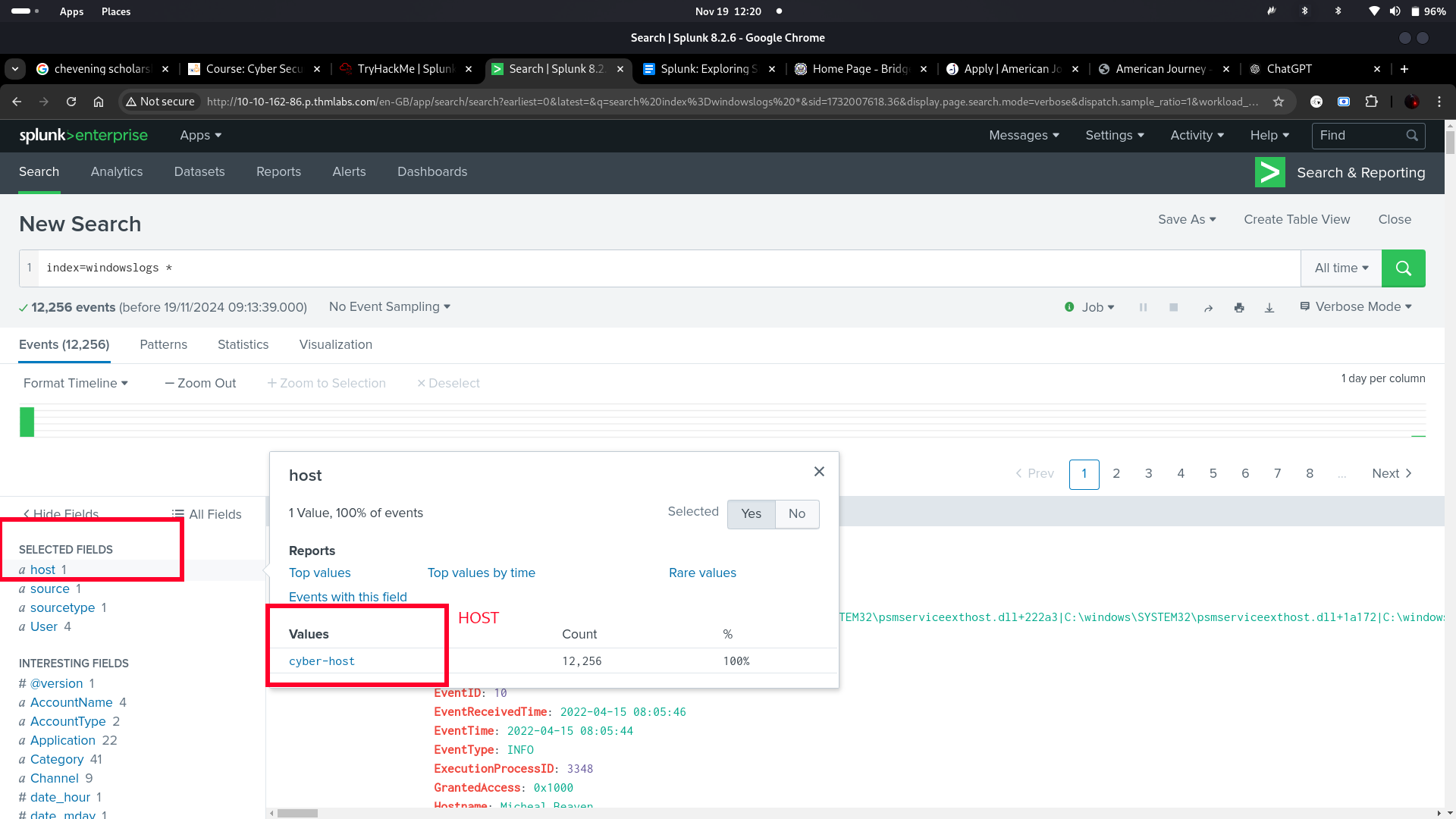
- What is the name of the host in the Data Summary tab?
[Answer: cyber-host]
[1.3 SEARCH AND REPORTING APP OVERVIEW]
I explored the Search & Reporting App, which serves as Splunk's default interface for searching and analyzing data. Key functionalities include the Search Head, where queries using the search processing language are run, and the Time Duration tab, which offers flexible time-based filtering for events. The Search History saves previous queries for easy access, while the Data Summary provides an overview of data sources, hosts, and event types, aiding network visibility. Lastly, the Field Sidebar displays selected and interesting fields with insights like top values and field counts, enhancing data exploration and search efficiency.
[Questions:]
-
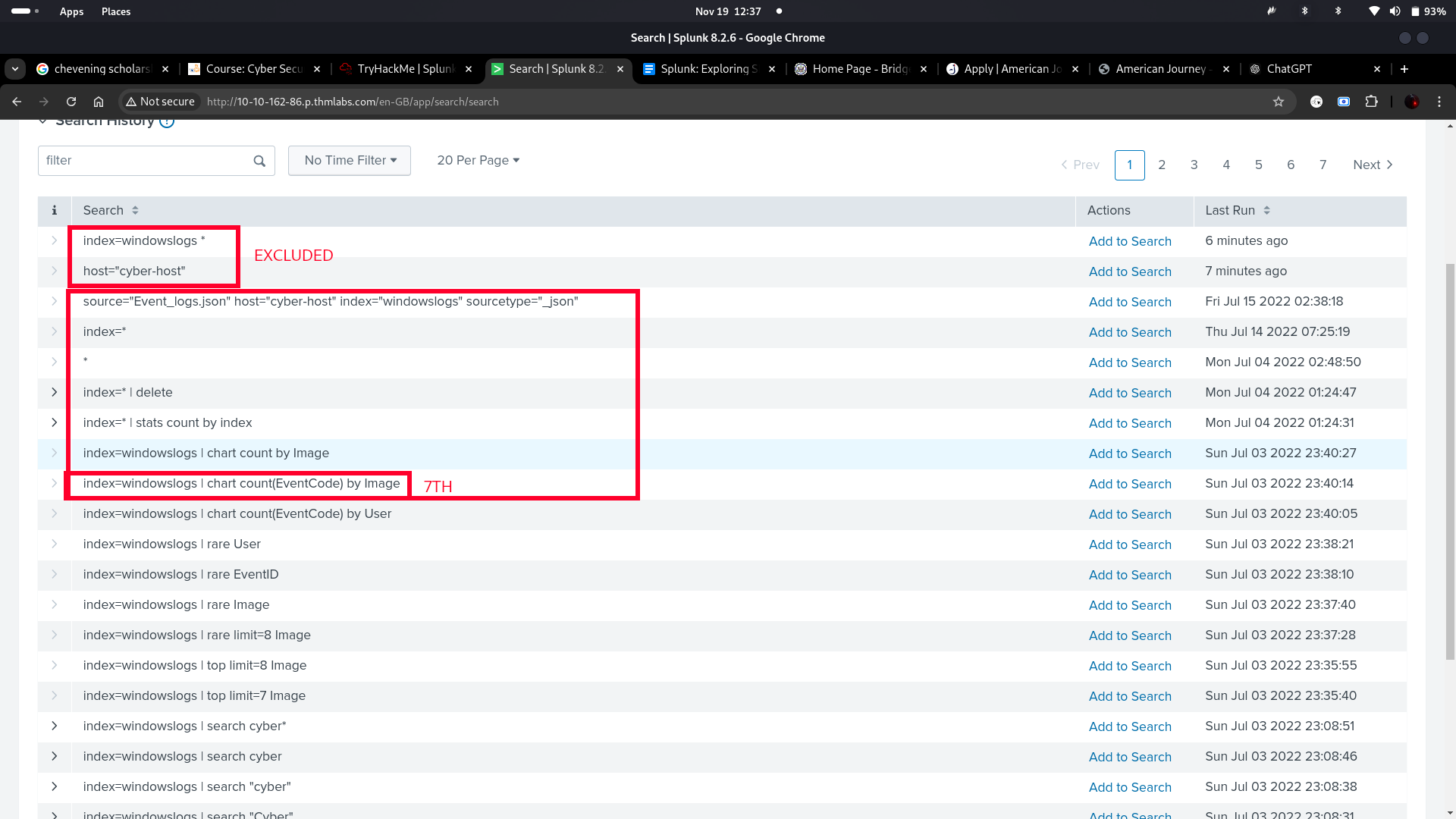
In the search History, what is the 7th search query in the list? (excluding your searches from today)
-
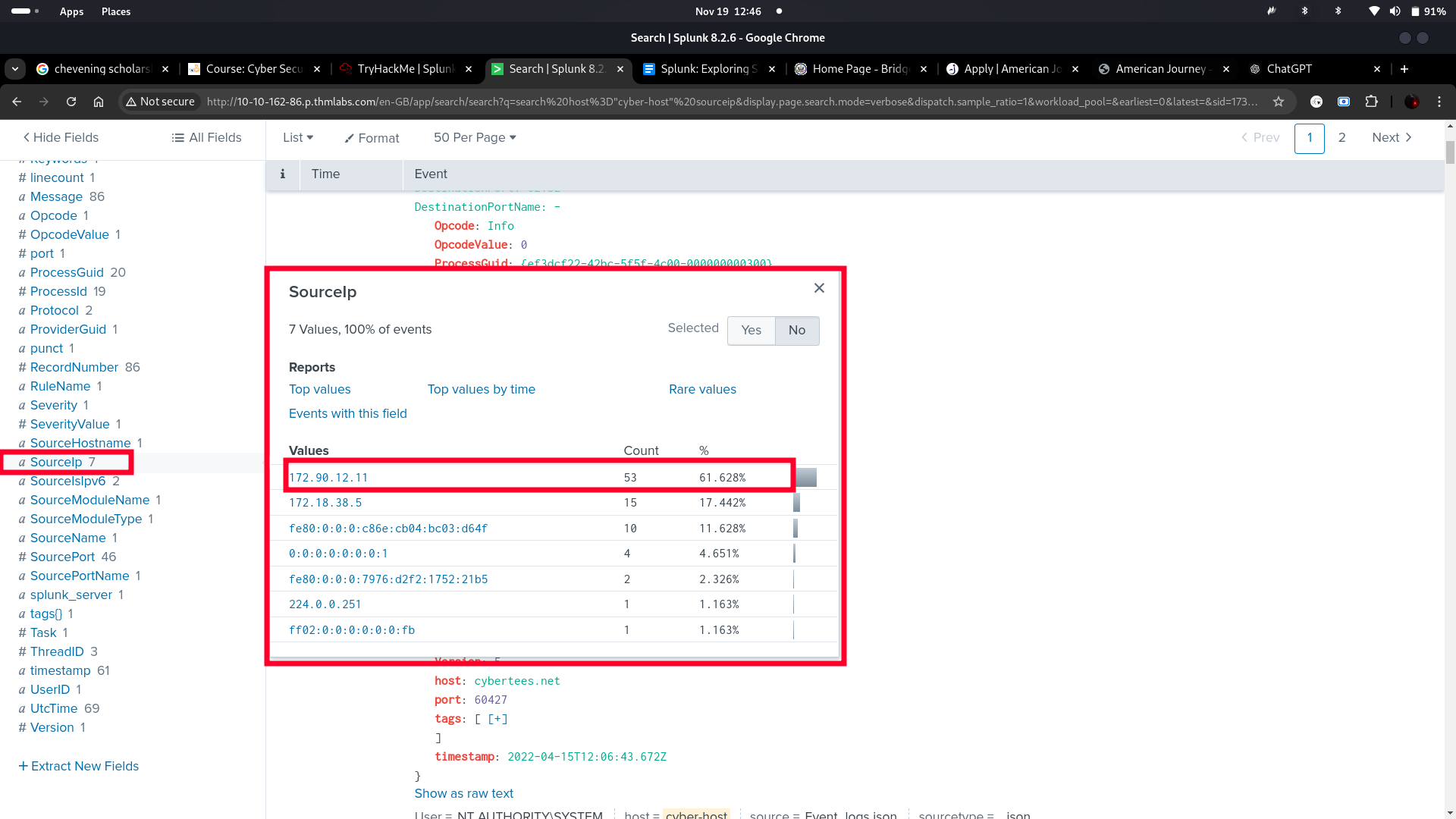
In the left field panel, which Source IP has recorded max events?
-
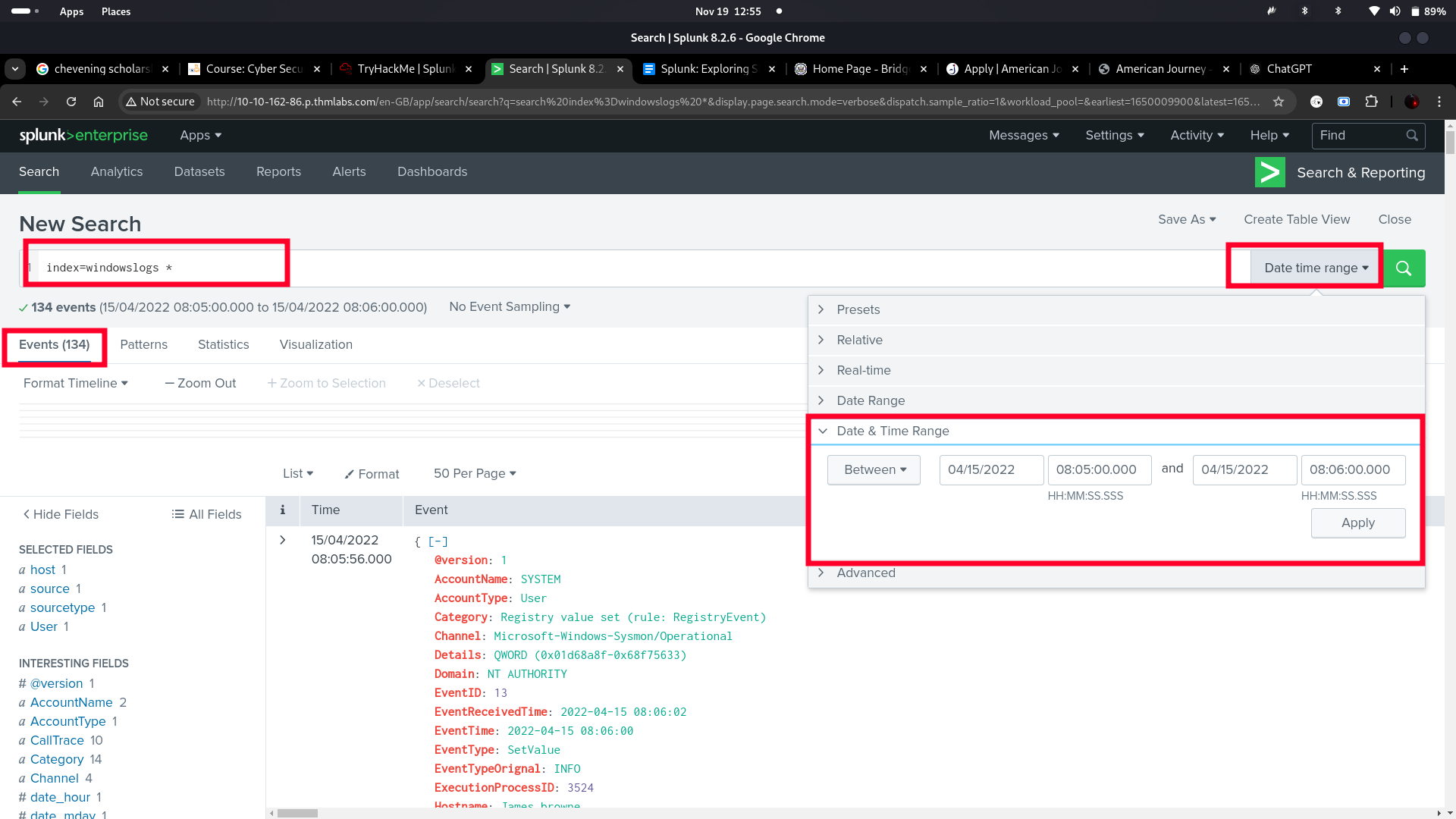
How many events are returned when we apply the time filter to display events on 04/15/2022 and Time from 08:05 AM to 08:06 AM?
[Question 1:]
[Answer: index=windowslogs | chart count(EventCode) by Image]
[Question 2:]
[Answer: 172.90.12.11]
[Question 3:]
[Answer: 134]
[1.4 SPLUNK PROCESSING LANGUAGE OVERVIEW]
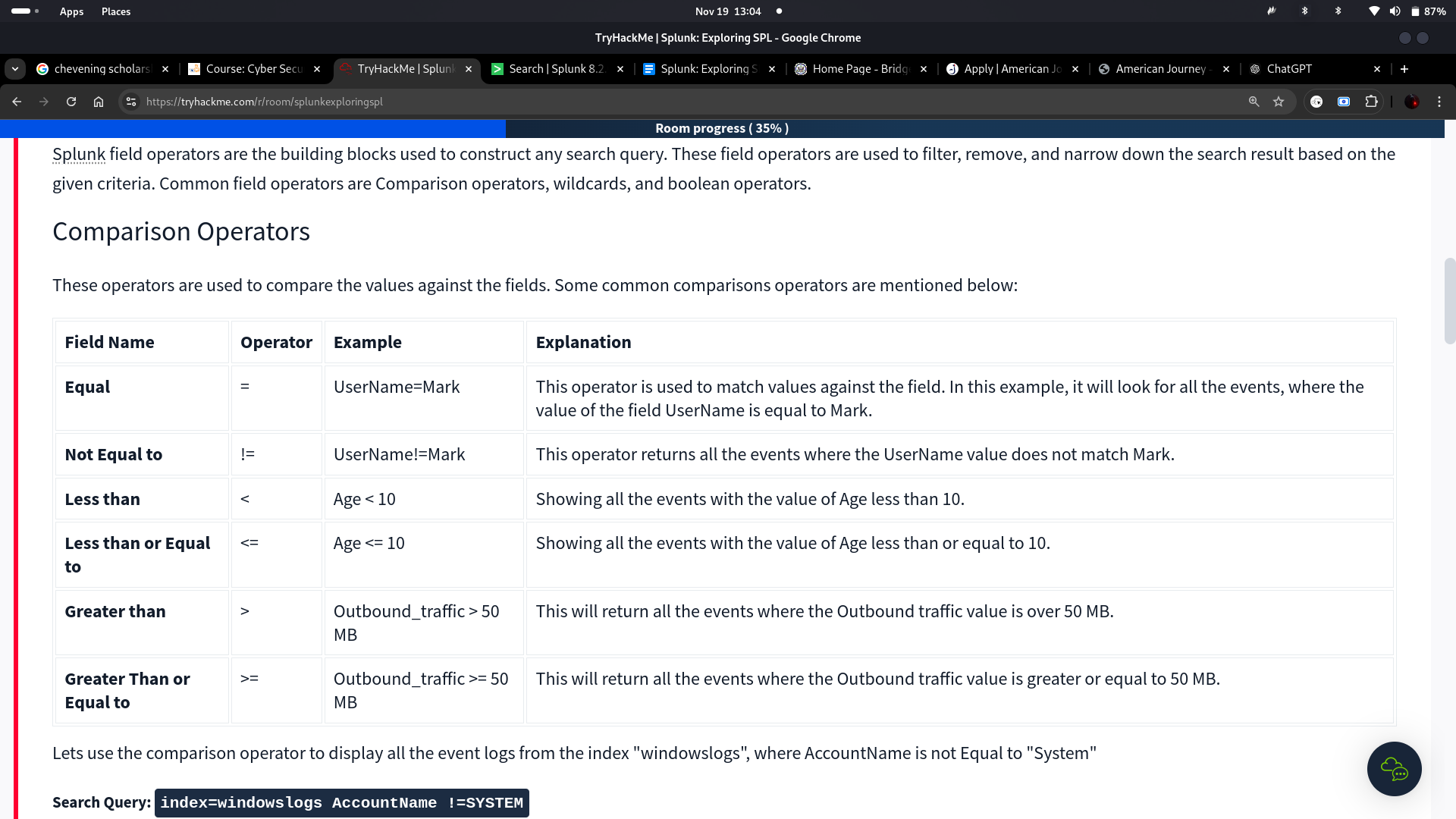
I delved into Splunk Search Processing Language (SPL), which uses various functions, operators, and commands to craft searches for desired results. Key components include Search Field Operators, used to filter and refine search results. Among these, Comparison Operators (e.g., =, !=, <, >) help compare field values, such as filtering logs where AccountName != SYSTEM. Boolean Operators (AND, OR, NOT) assist in combining multiple conditions, like showing logs for AccountName=James. Lastly, Wildcards (*) match patterns in strings, such as finding IPs starting with 172.*. These tools streamline analyzing ingested log data efficiently.
[Search field operators:]
[Questions:]
-
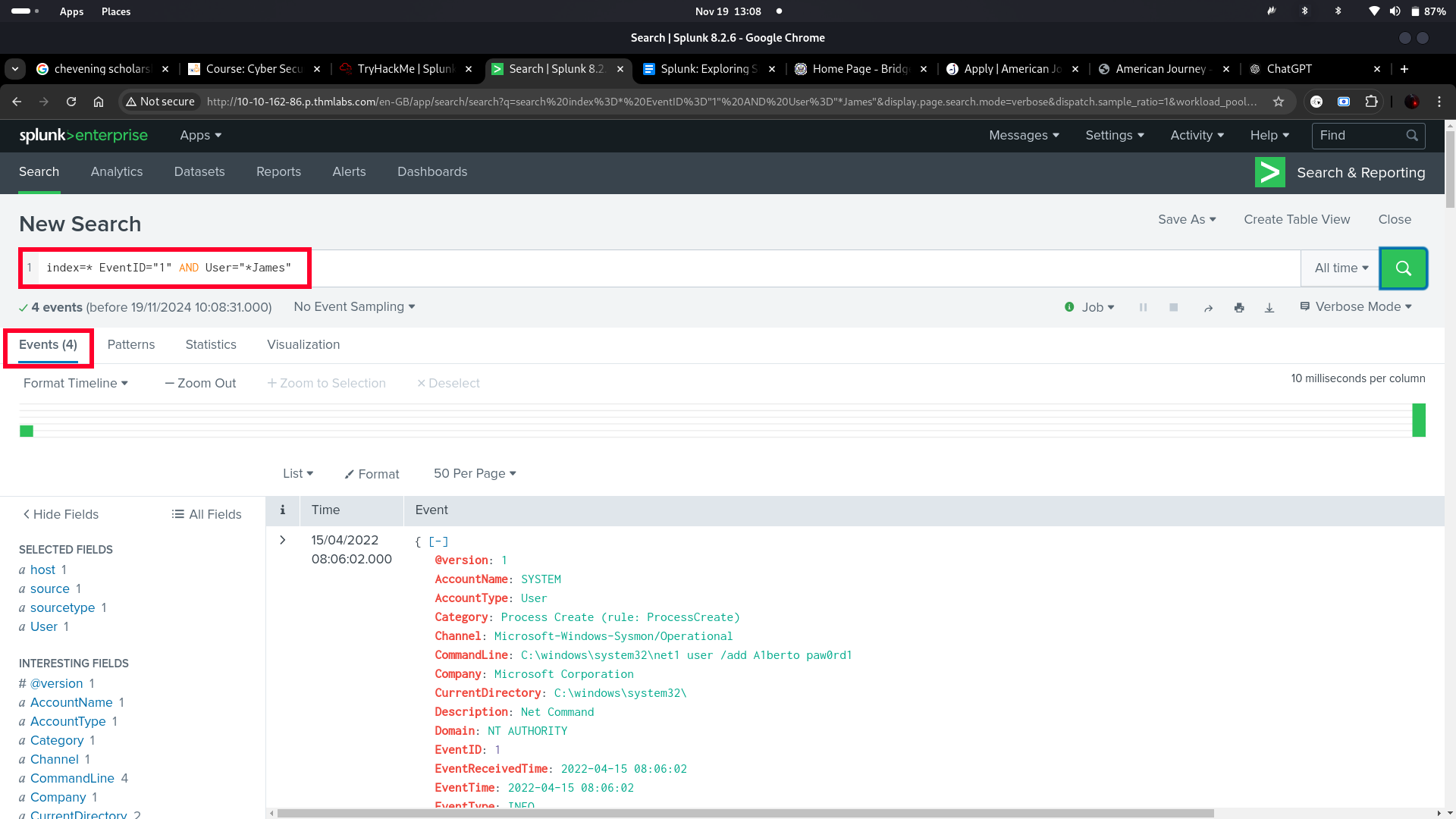
How many Events are returned when searching for Event ID 1 AND User as *James*?
-
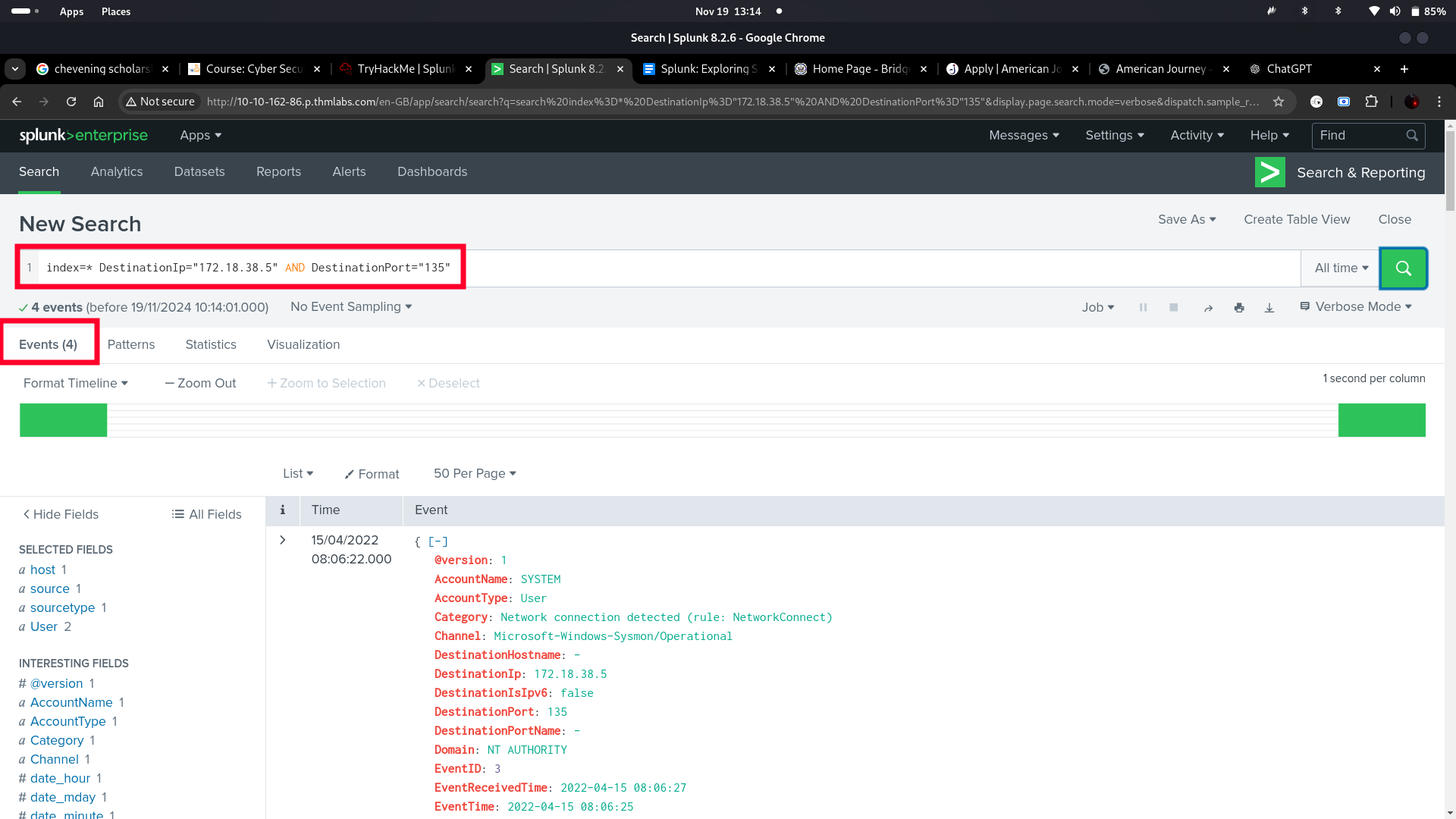
How many events are observed with Destination IP 172.18.39.6 AND destination Port 135?
-
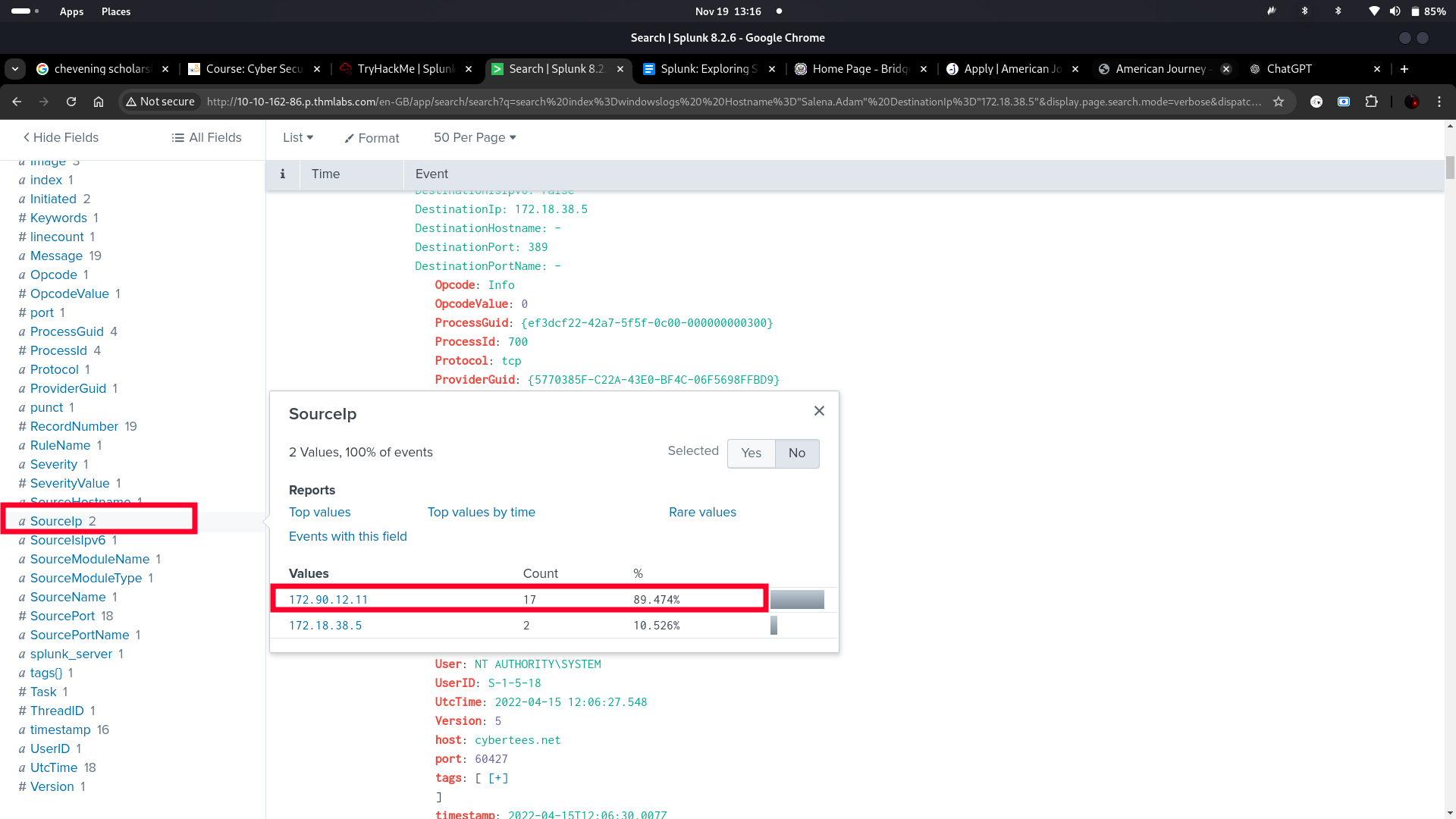
What is the Source IP with highest count returned with this Search query?
Search Query: index=windowslogs Hostname="Salena.Adam" DestinationIp="172.18.38.5"
-
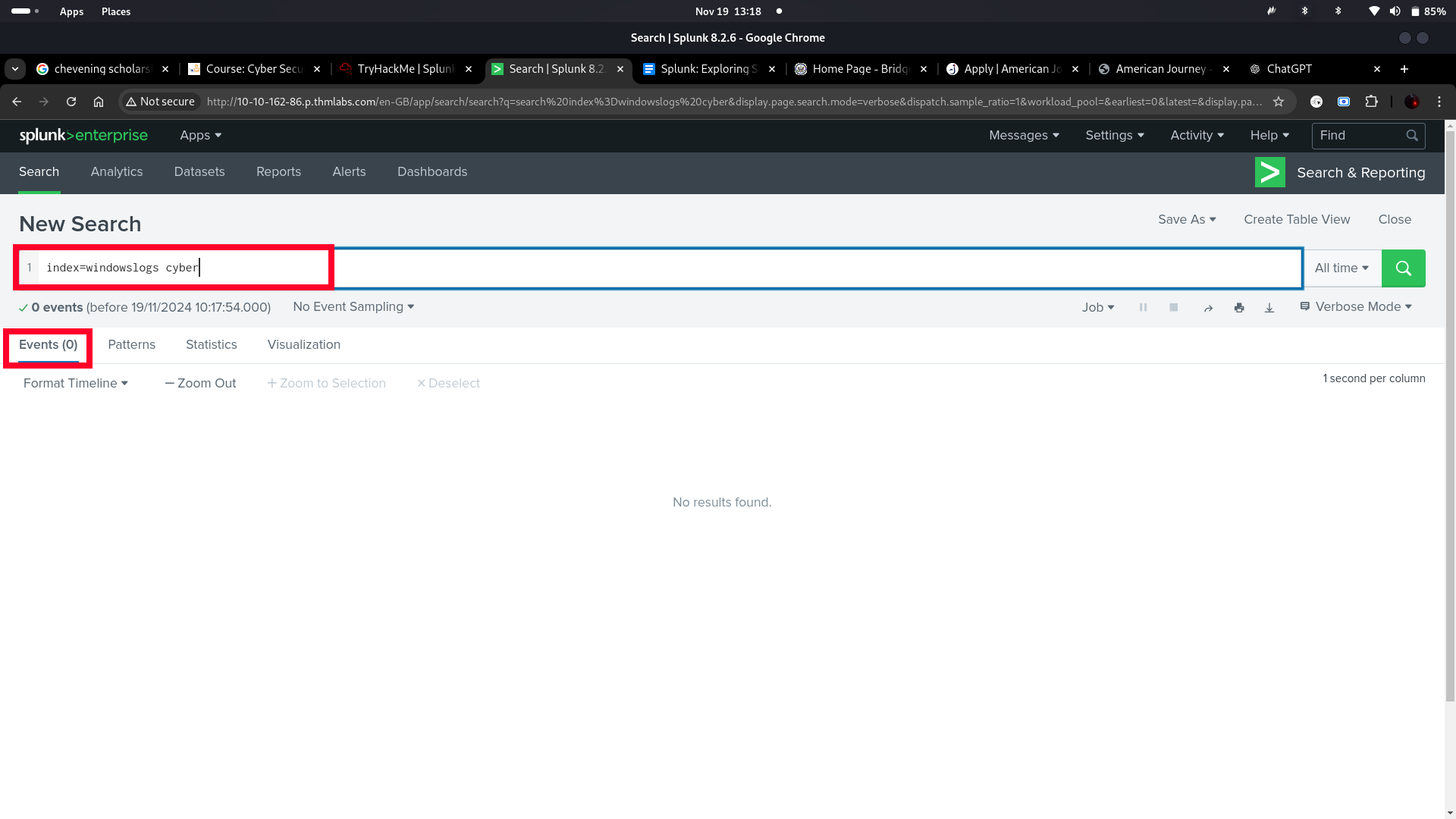
In the index windowslogs, search for all the events that contain the term cyber how many events returned?
-
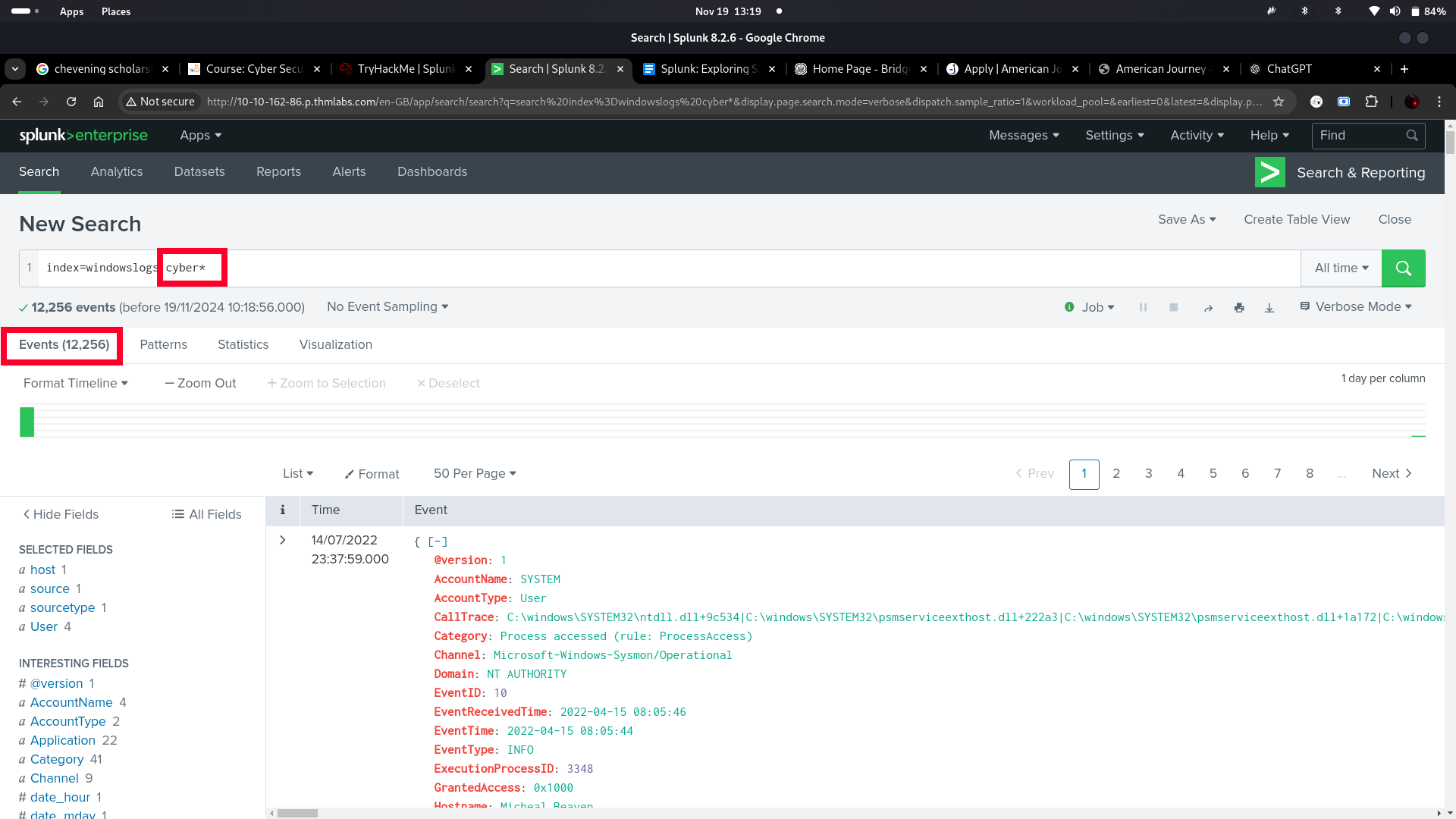
Now search for the term cyber*, how many events are returned?
[Question 1:]
[Answer: 4]
[Question 2:]
[Answer: 4]
[Question 3:]
**[Answer:]**172.90.12.11
[Question 4:]
[Answer: 0]
[Question 5:]
[Answer: 12, 256]
[1.5 FILTERING THE RESULTS IN SPL]
I explored the use of filters in Splunk Search Processing Language (SPL), which simplifies analyzing large volumes of logs by narrowing down results. The Fields command allows adding (+) or removing (-) specific fields, such as displaying host, User, and SourceIP. The Search command identifies events containing specific keywords, like "Powershell". The Dedup command eliminates duplicate fields, ensuring only unique values, such as distinct EventIDs, are shown. Finally, the Rename command updates field names for better clarity, like renaming User to Employees.
[Questions:]
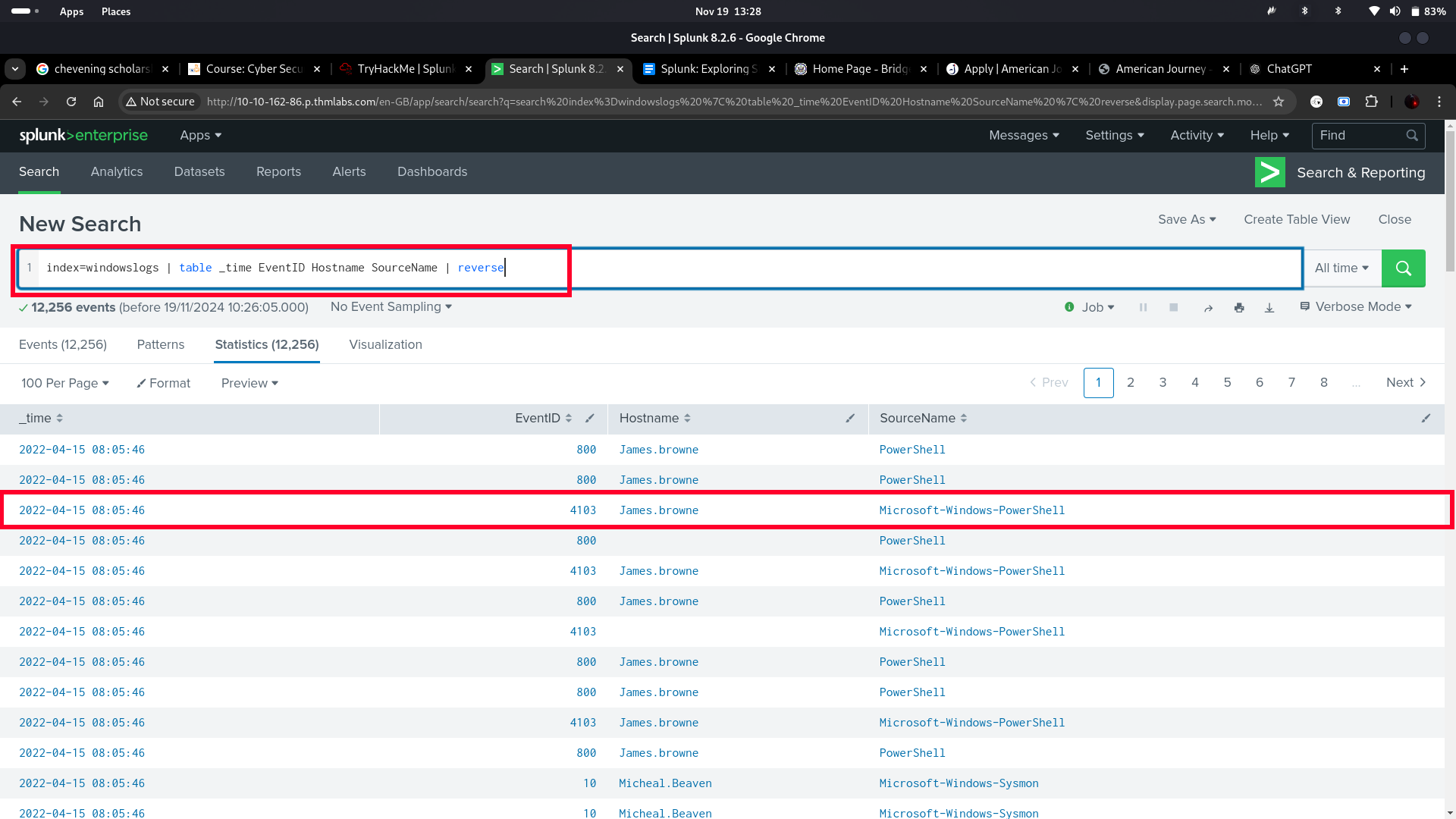
- What is the third EventID returned against this search query?
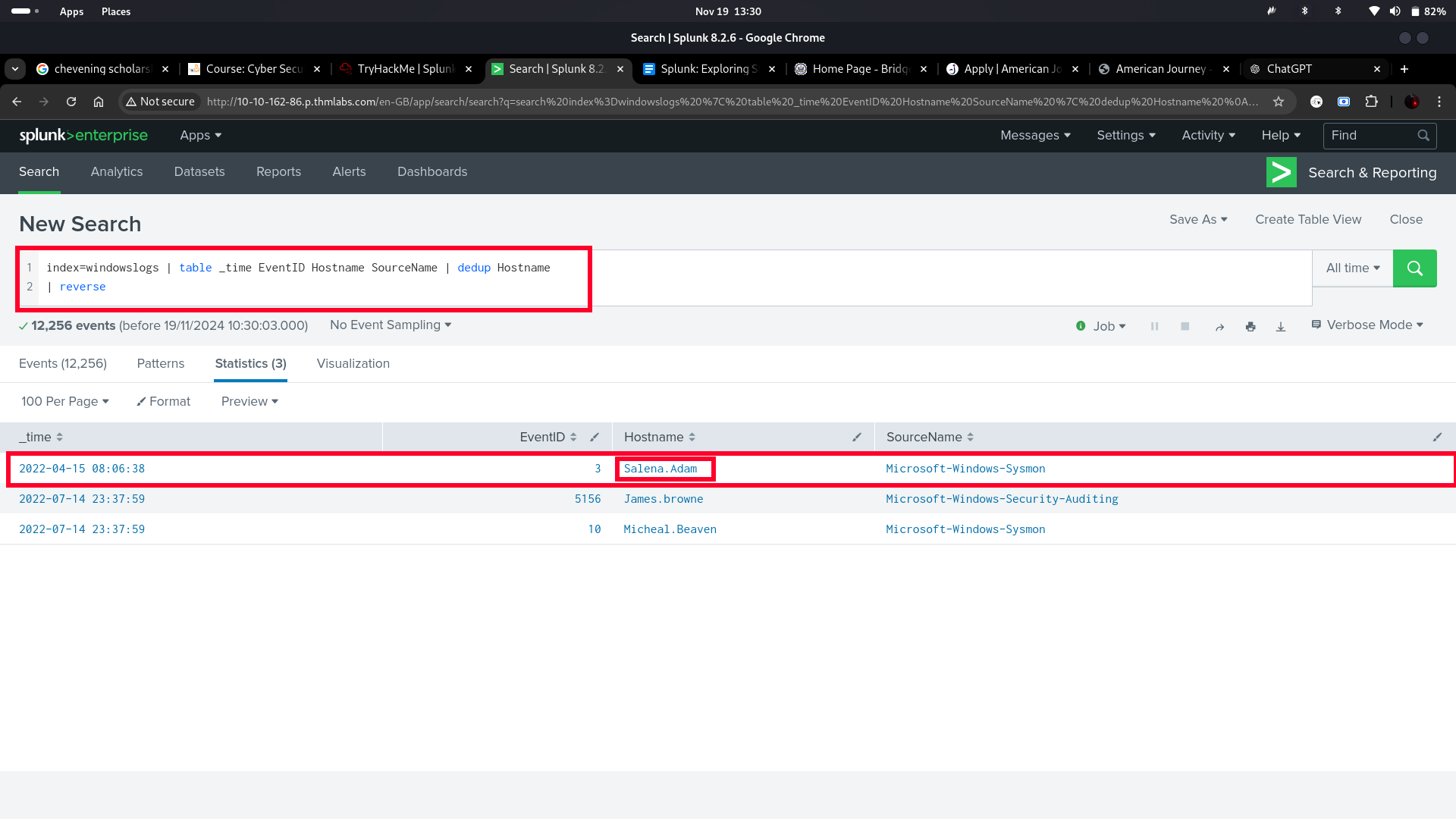
Search Query: index=windowslogs | table _time EventID Hostname SourceName | reverse
- Use the dedup command against the Hostname field before the reverse command in the query mentioned in Question 1. What is the first username returned in the Hostname field?
[Question 1:]
[Answer: 4103]
[Question 2:]
[Answer: Salena.Adam]
[1.6 SPL - STRUCTURING THE SEARCH RESULTS]
SPL provides various commands to bring structure or order to the search results. These sorting commands like head, tail, and sort can be very useful during logs investigation.
[Questions:]
-
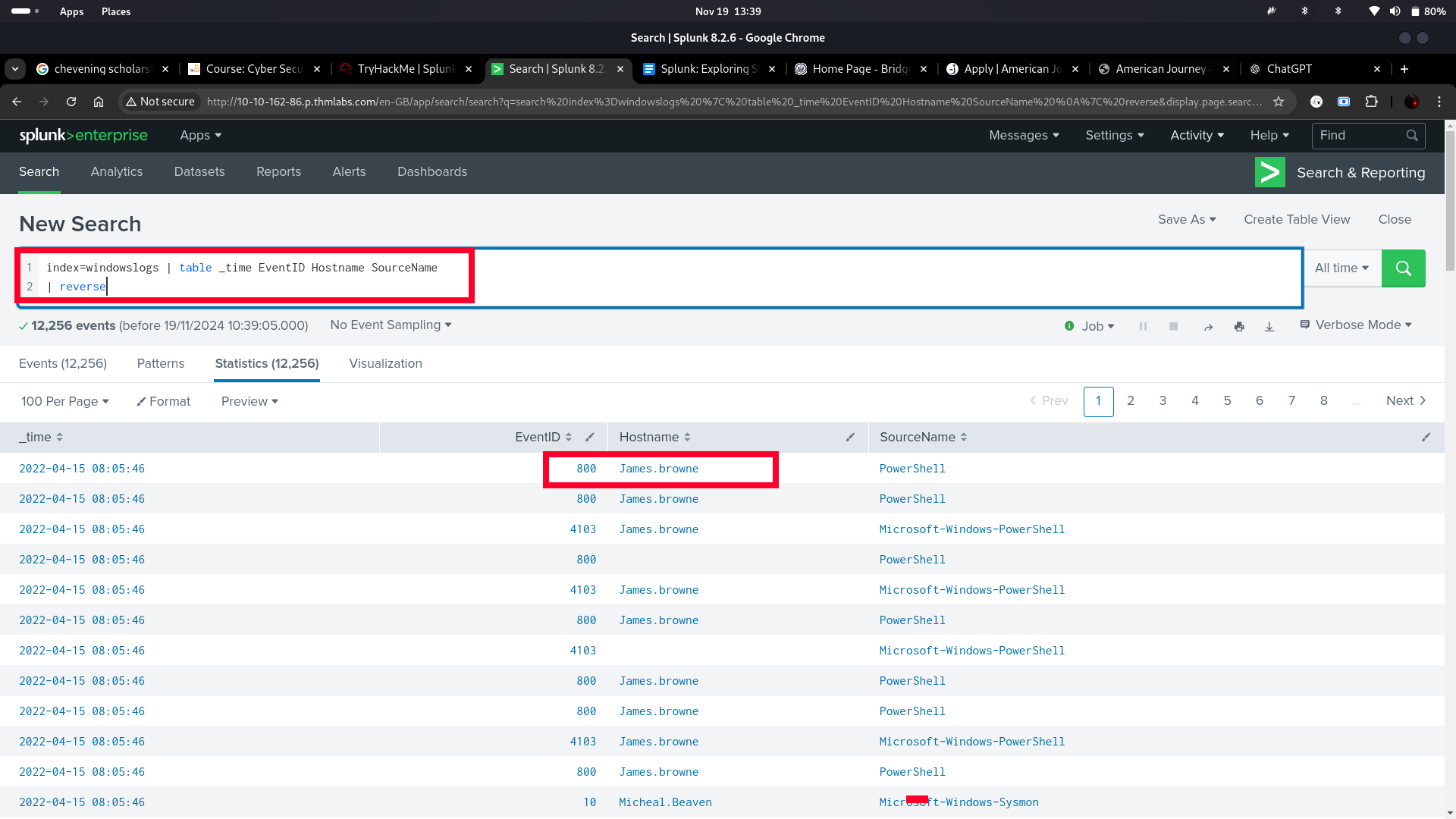
Using the Reverse command with the search query index=windowslogs | table _time EventID Hostname SourceName - what is the HostName that comes on top?
-
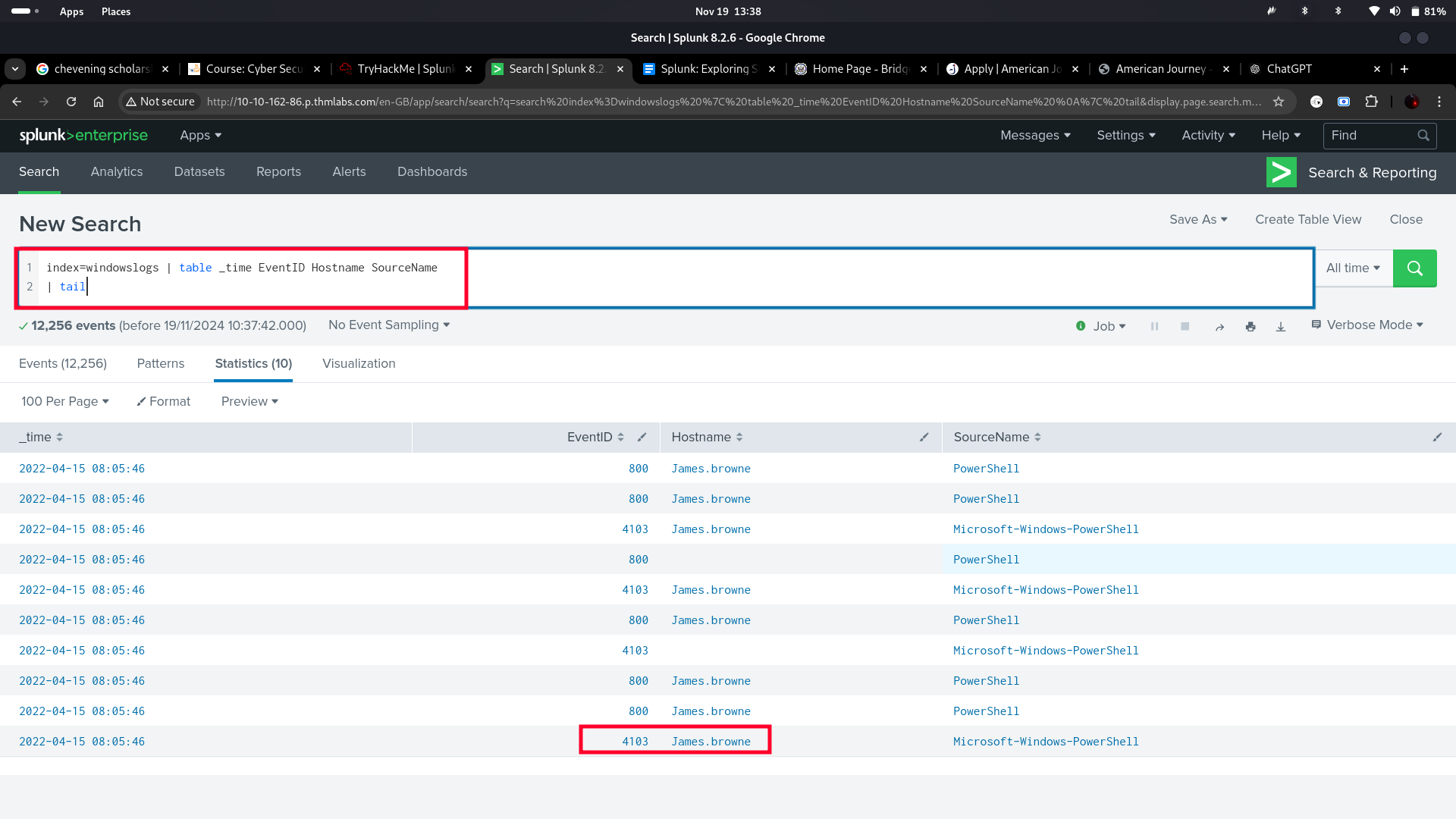
What is the last EventID returned when the query in question 1 is updated with the tail command?
-
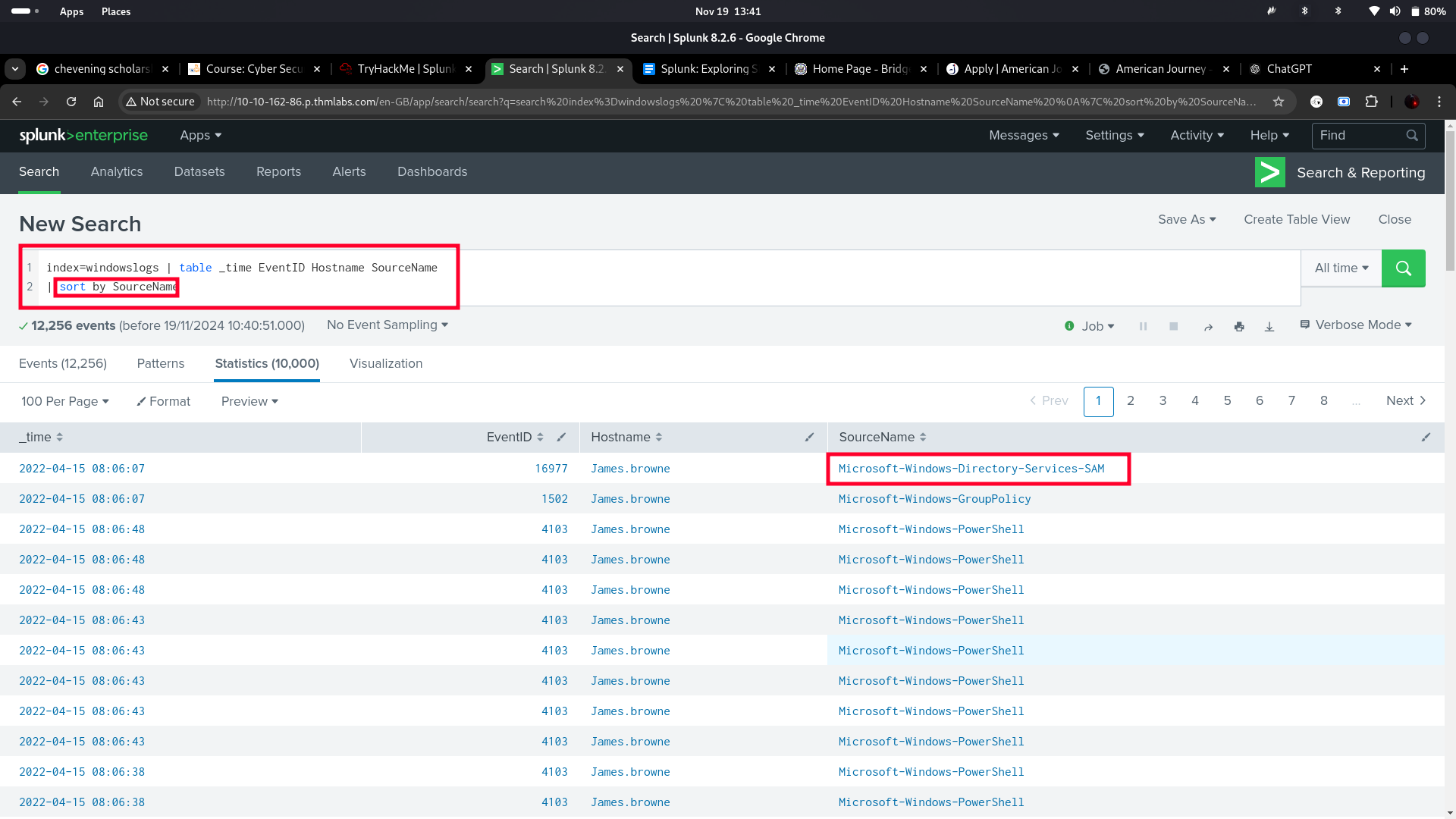
Sort the above query against the SourceName. What is the top SourceName returned?
[Question 1:]
[Answer: James.browne]
[Question 2:]
[Answer: 4103]
[Question 3:]
[Answer: Microsoft-Windows-Directory-Services-SAM]
[1.7 TRANSFORMATIONAL COMMANDS IN SPL]
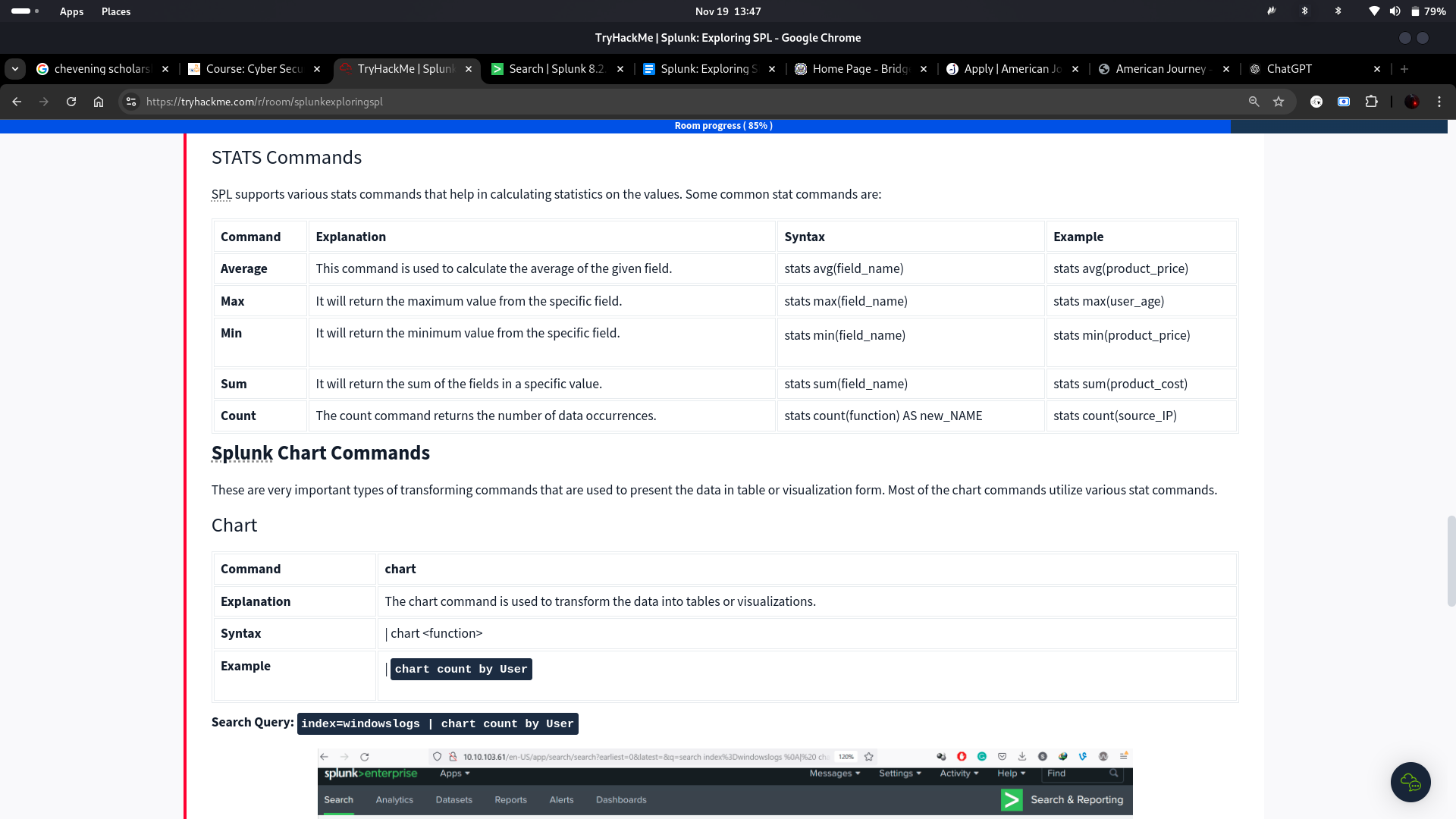
Transformational commands are those commands that change the result into a data structure from the field-value pairs. These commands simply transform specific values for each event into numerical values which can easily be utilized for statistical purposes or turn the results into visualizations. Searches that use these transforming commands are called transforming searches.
[Stats Commands:]
[Questions:]
-
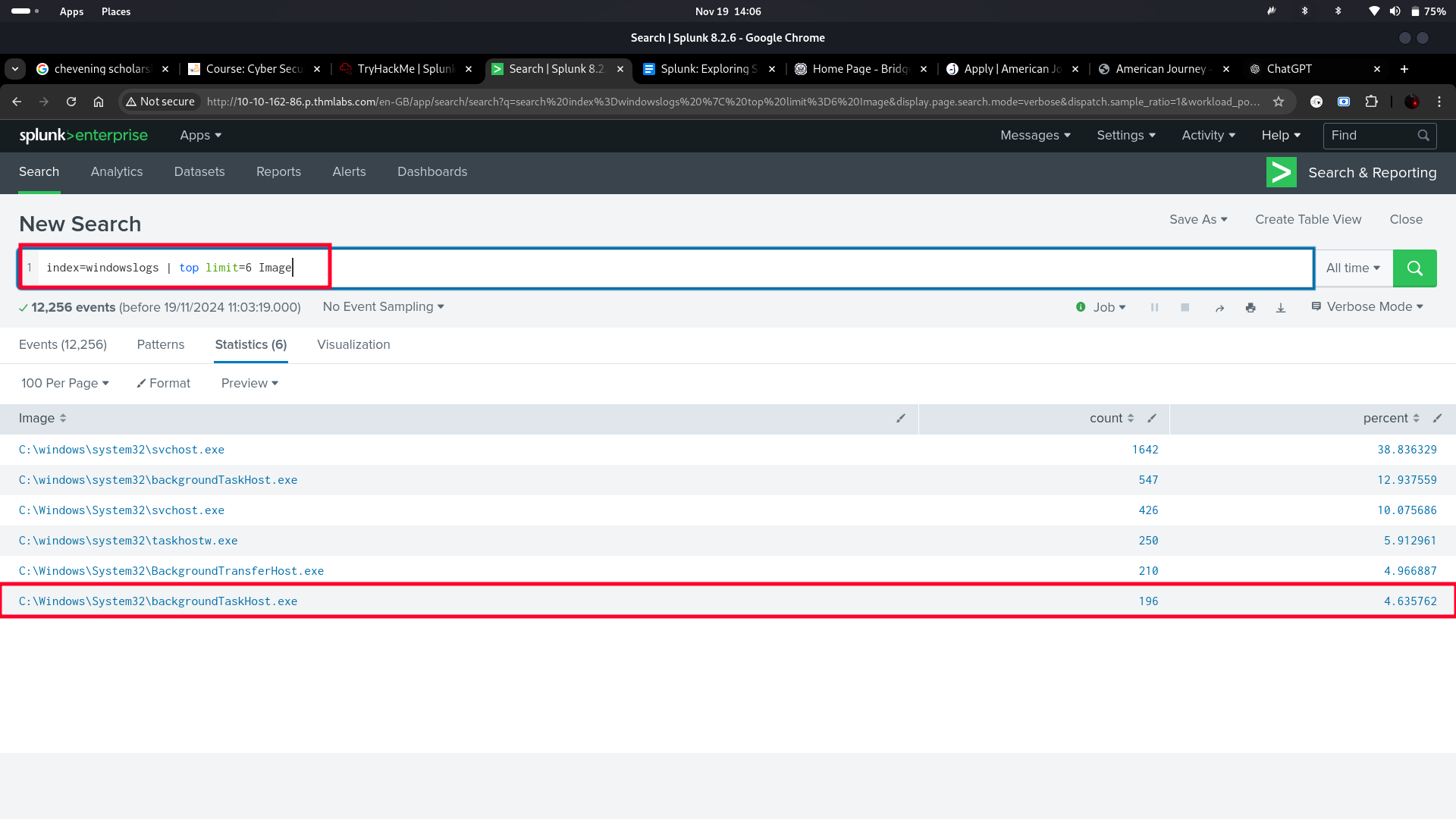
List the top 8 Image processes using the top command - what is the total count of the 6th Image?
-
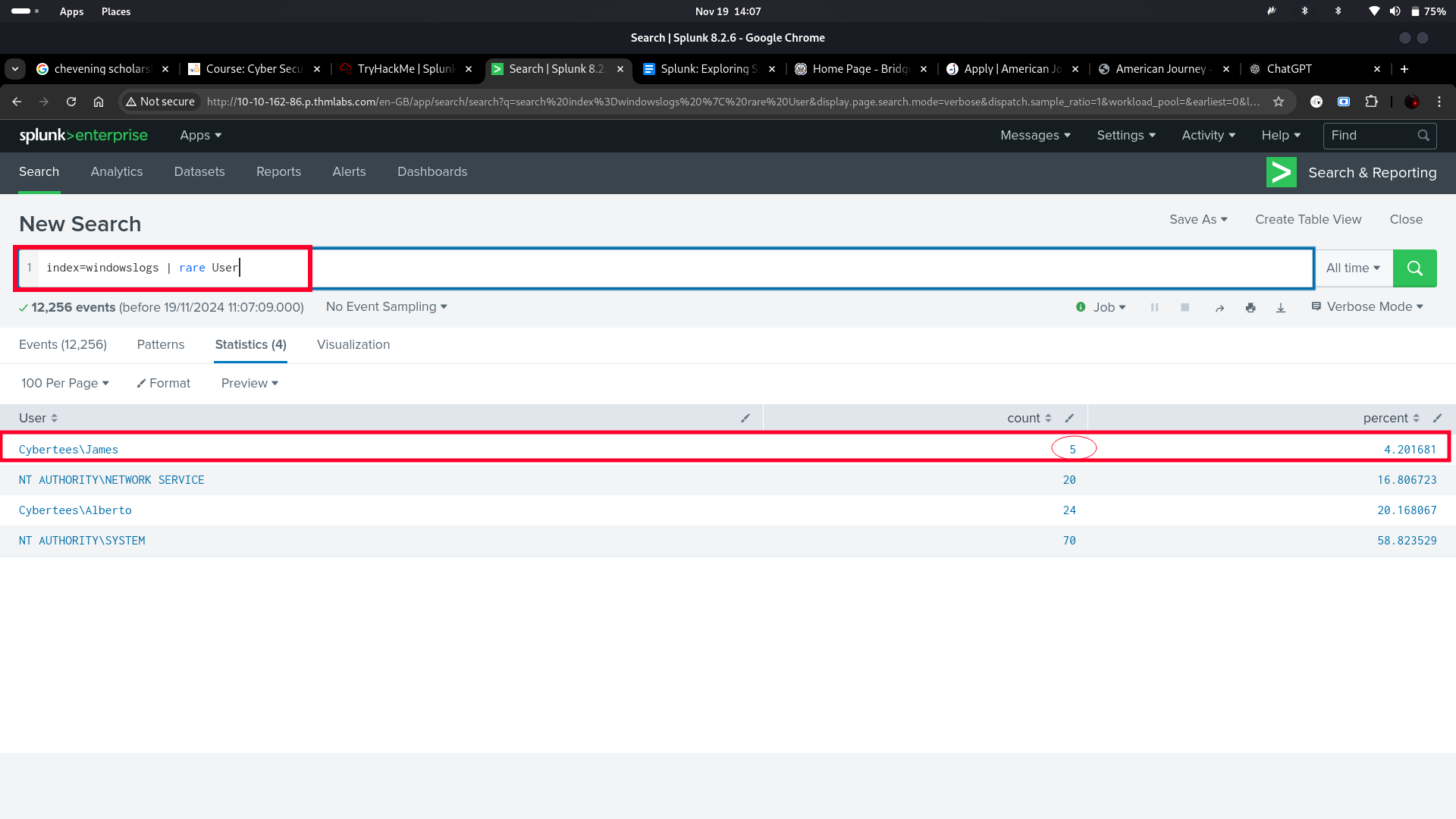
Using the rare command, identify the user with the least number of activities captured?
-
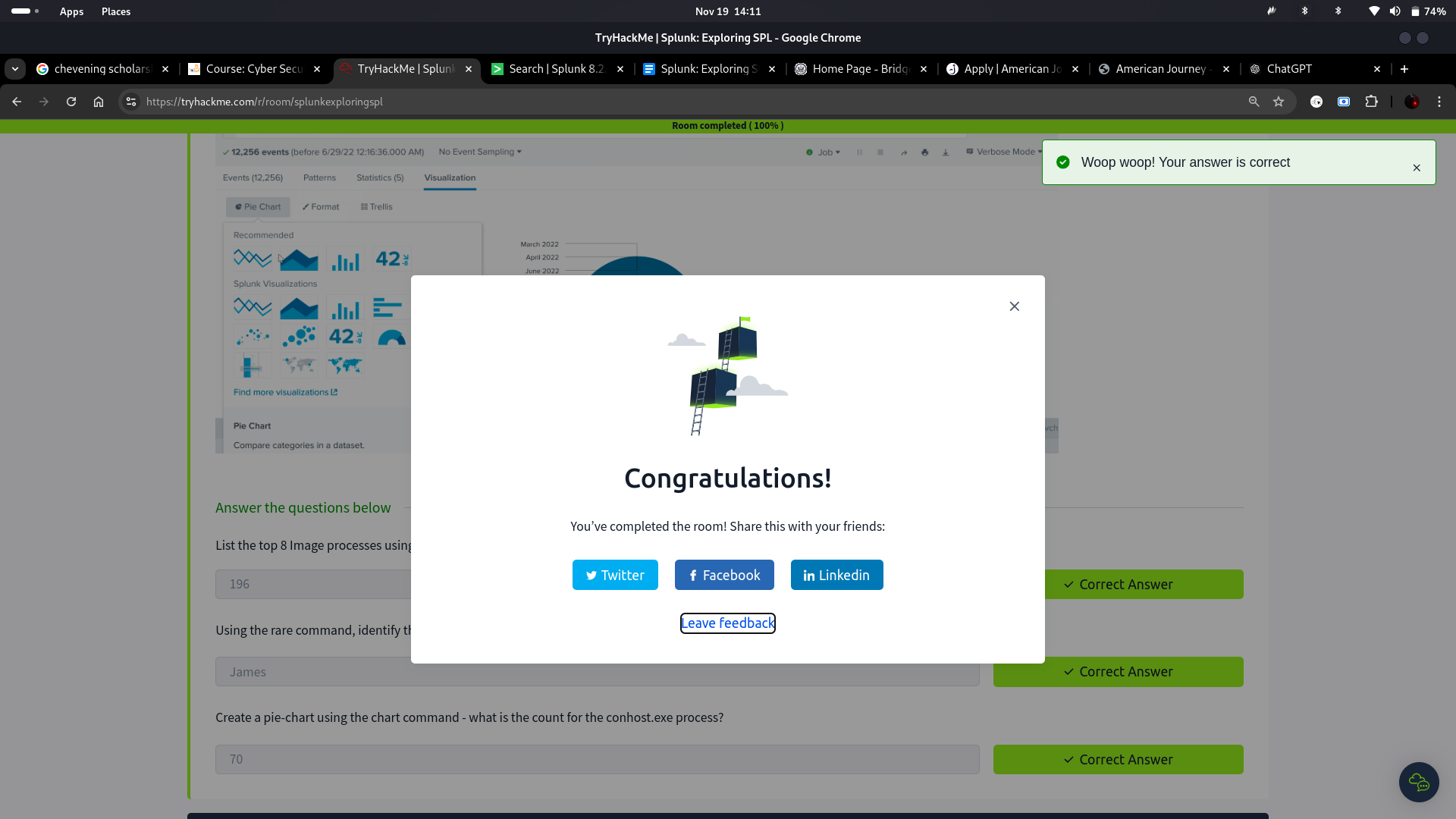
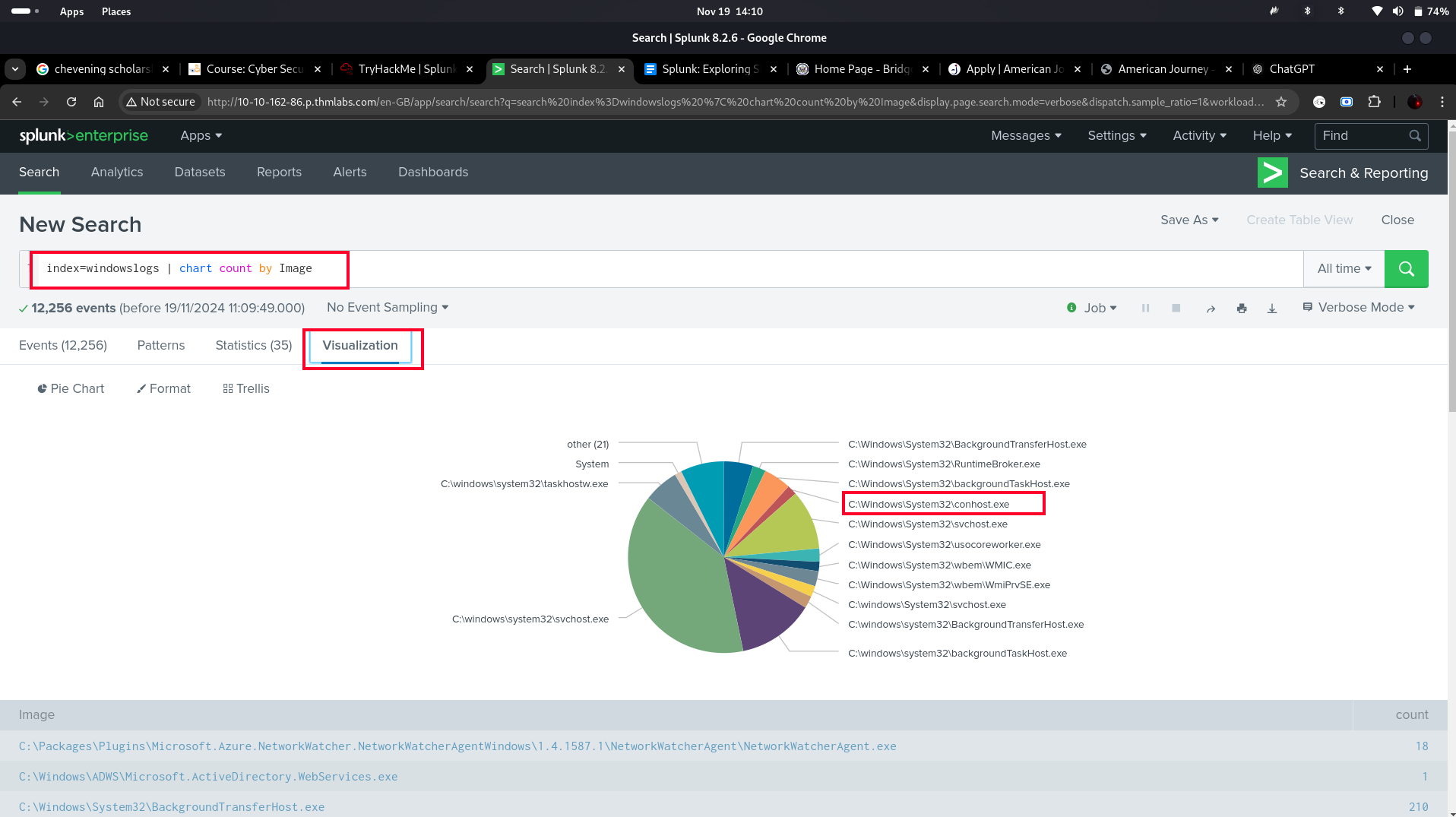
Create a pie-chart using the chart command - what is the count for the conhost.exe process?
[Question 1:]
[Answer: 196]
[Question 2:]
[Answer: James]
[Question 3:]
[Answer: 70]
[1.8 CONCLUSIONS]
The module provided a clear understanding of using Search Processing Language (SPL) for efficient log analysis. I learned key commands like fields, search, dedup, and rename to filter and refine data, as well as transformational commands like stats and charts for visualization and statistical insights. These skills enable me to analyze large datasets, identify anomalies, and enhance network security effectively.